Introduction: Starting from Zero
Everyone's homelab journey starts somewhere. Some people begin with a Raspberry Pi. Others start with an old laptop. Mine started with an insanely cheap AliExpress bundle, some budget components, and the most unconventional case you've probably ever seen: an Amazon shipping box.
This is the story of how I built my first serious NAS system without spending a fortune, using whatever made economic sense at the time, and yes, a literal cardboard box as the case. If you've ever thought you need thousands of dollars or perfect components to get started with a homelab, this post will hopefully convince you otherwise.
The Philosophy: Just Get Started
There's a trap that catches many aspiring homelab builders: waiting for the perfect setup. You spend months researching components, watching YouTube videos, reading forum threads, and planning the ideal configuration. Meanwhile, you're not learning anything because you haven't actually built anything.
My approach was different: buy what's cheap, get it working, and iterate from there. The Amazon box wasn't the destination—it was the launch pad.
The Component Hunt: Whatever's Cheapest on AliExpress
The AliExpress Bundle: Mobo + CPU + RAM
The foundation of this build came from one of those AliExpress motherboard-CPU-RAM combo kits. You know the ones—they pop up in your feed with suspiciously low prices, Chinese brand names you've never heard of, and specs that seem too good to be true.
What I Got:
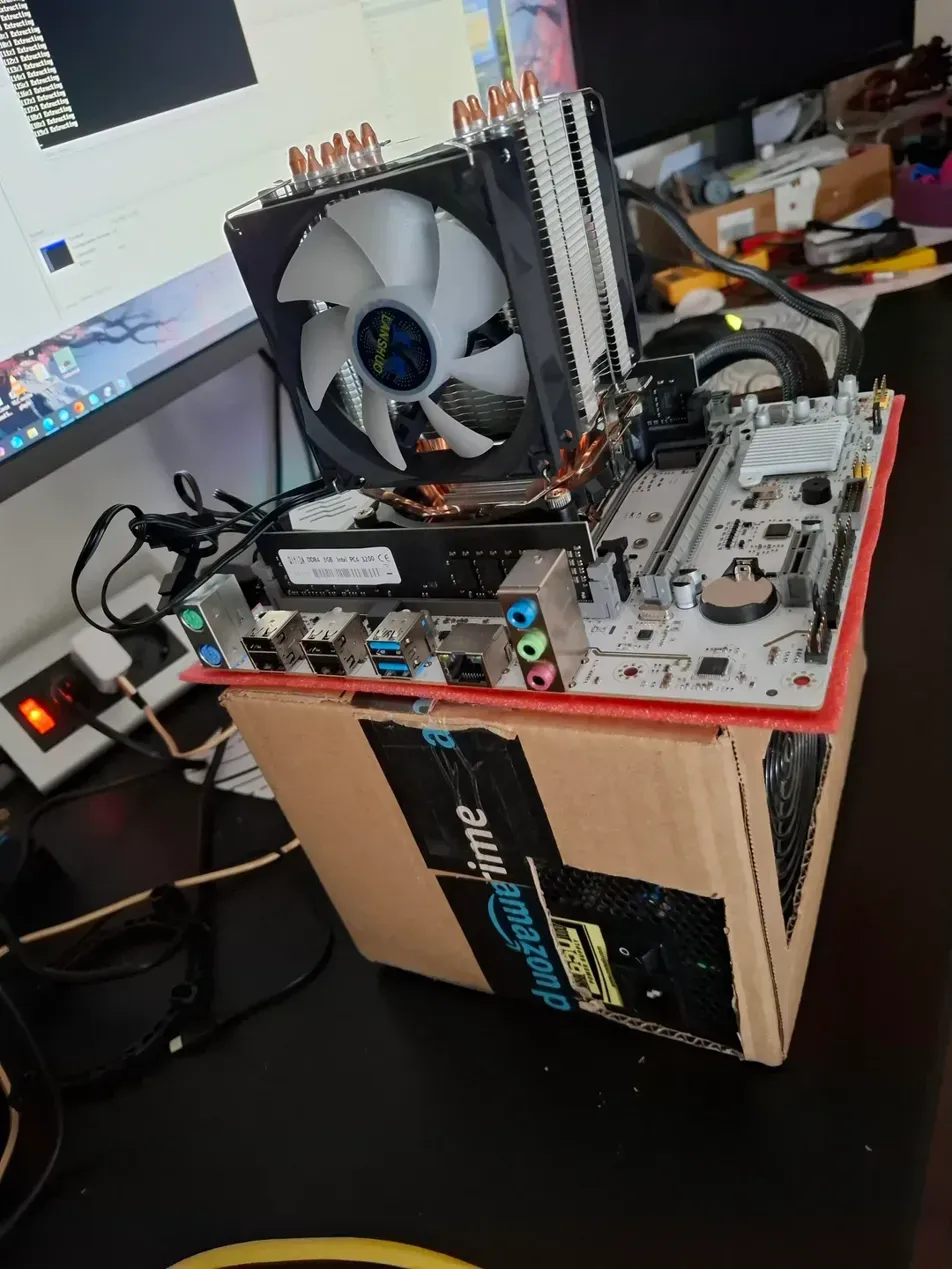
- Motherboard: Qiyida X99-D4 (white PCB, basic but functional)
- CPU: Intel Xeon E5-2640v4 (10 cores, 20 threads)
- RAM: 16GB DDR4-3200MHz
- Total Cost: Absurdly cheap for what you're getting
Why This Bundle?
Honestly? Because it was insanely cheap. That's it. That's the reason.
I wasn't sitting there thinking "I need a 10-core Xeon for my NAS." I wasn't carefully comparing the E5-2640v4 against other processors. I saw a complete platform: motherboard, CPU, and RAM, for less than what just a decent motherboard costs from traditional retailers, and I thought "20 threads sounds cool, let's do it."
This is peak AliExpress shopping: you're not really choosing components based on careful needs analysis. You're choosing based on what's ridiculously cheap at that moment. And you know what? That's perfectly fine for a homelab project.
The Reality of Chinese X99 Boards
The Qiyida X99-D4 is part of a whole ecosystem of budget X99 boards from Chinese manufacturers. These boards are:
- Incredibly cheap: A fraction of what branded boards cost
- Functional: They work, and that's what matters
- Limited: Only 4 SATA ports, minimal PCIe slots, basic features
- Adequate: For getting started, they're more than good enough
The Limitations:
- Only 4 SATA3 ports (knew this going in, accepted it)
- One PCIe 3.0 x16 slot
- One PCIe 2.0 x1 slot
- No fancy features whatsoever
- BIOS updates are basically nonexistent
- English documentation is... creative
But here's the thing: for the price, who cares? This board gets the CPU running, recognizes the RAM, boots an operating system, and controls some hard drives. That's literally all I needed.
Why Xeon? Because It Came With It
Let me be clear: I didn't buy this because I specifically needed a Xeon processor. I bought it because the bundle was cheap and 20 threads sounded cool. That's the entire thought process.
Is a 10-core Xeon overkill for a basic NAS? Absolutely. But when the complete platform costs less than just buying a modern i3 and motherboard separately, "overkill" stops being a meaningful complaint. You take the deal and figure out how to use the extra resources later.
The Xeon E5-2640v4 Specs:
- 10 cores, 20 threads
- 2.4 GHz base, 3.4 GHz turbo
- 90W TDP
- LGA 2011-v3 socket
- Designed for servers (so 24/7 operation is fine)
Turns out, having way more CPU than necessary isn't a bad problem. It means the NAS never struggles with anything—file transfers, transcoding, running additional services—it all just works without breaking a sweat.
Memory: 16GB Because That's What Came in the Kit
The 16GB DDR4-3200MHz RAM came with the bundle. Is it ECC? No. Does the board run it at 3200MHz? Probably not, probably running at 2400MHz or 2666MHz. Do I care? Not really.
For a home NAS, 16GB is plenty. ZFS likes RAM for caching, but you don't need 64GB for a small home setup. The non-ECC debate is something I didn't even think about when buying – it's what came in the kit, so that's what I'm using.
If it becomes a problem later, I can upgrade. But so far? It works fine.(Worst idea ever with current market (2026)
Storage: The Accidental Purchase
Here's where it gets funny: I meant to buy Toshiba N300 drives but accidentally ordered S300 drives instead. Realized my mistake after clicking "buy."
What's the Difference?
- N300: Specifically marketed for NAS use
- S300: Also designed for NAS, slightly different specifications
- Both are 24/7 rated drives built for multi-drive arrays
The Result: The S300 drives were actually cheaper than IronWolf drives (the other option I was considering), so the "mistake" turned into a better deal. Sometimes incompetence leads to savings.
Why 4TB? Because that's what made sense price-wise at the time. Not too small to be useless, not so large that prices jumped significantly.
Why Four Drives? Because I knew from the start I wanted RAIDZ2 (dual parity), and four drives in RAIDZ2 gives you 50% storage efficiency—8TB usable from 16TB raw. The redundancy was non-negotiable even from the beginning.
Boot Drive: Whatever SSD I Had
The WD Black 128GB SSD wasn't a carefully researched purchase—it was just an SSD I already had lying around from some previous project. TrueNAS doesn't need much space for the OS, so 128GB is more than adequate. Why buy something new when you have something that works?
Cooling: RGB Because Why Not
The CPU cooler is a random RGB tower cooler from Amazon for about €20-30. It has:
- Some heat pipes (not sure how many, didn't count)
- Aluminum fins (probably)
- RGB lighting (definitely)
- A fan that spins (badly)
Does it keep the CPU cool? Yes. That's literally all that matters. The RGB is completely pointless for a headless NAS sitting in a cardboard box under a desk, but it came that way and it was cheap. Sometimes you get RGB whether you want it or not.
I got rid of the poorly spinning fans and replaced them with two Thermaltake 90mm ones.
Power Supply: Found, Then Upgraded
Phase 1: I used whatever PSU I had lying around from god-knows-what old PC. I don't even remember the brand. It provided power. Components turned on. Good enough for testing.
Phase 2: Once I committed to running this 24/7, I upgraded to a Sharkoon SilentStorm Cool Zero 650W 80 Plus Gold. This was less about brand loyalty and more about "this was on sale and has decent efficiency."
For a system running continuously, the 80 Plus Gold efficiency means lower electricity costs. The semi-passive cooling means it's quieter. The 650W is way more than needed but gives headroom for adding more drives. It's a reasonable investment for a system that's running all the time.
feb/2026: The PSU failed after 6k hours of continuos work, replaced with a bequit! pure power 12.
The Case: Amazon Box v3 Custom Edition
The most asked question about this build: "Why cardboard?"
The answer: Because I already had an Amazon box, and buying a case would mean waiting for shipping and spending money.
The Modifications
I didn't just dump components into an unmodified box:
Ventilation: Cut strategic holes for airflow. The biggest hole is at the bottom with a 120mm fan installed to move air through the system.
Mounting: Used flat cardboard and careful positioning to keep the motherboard stable and prevent any shorts.
Cable Management: The sides of the box kept cables somewhat contained. "Management" is a generous term, but it's better than cables sprawling everywhere.
Structural Reinforcement: Added some extra cardboard to keep the bottom from sagging under the weight of components.
Why It Actually Works
Pros:
- Free
- Immediate availability
- Easy to modify
- Complete access to all components for troubleshooting
- Actually has decent airflow with the modifications
- Non-conductive (can't short anything on cardboard)
Cons:
- Looks absolutely ridiculous
- Not durable long-term
- Flammable (though components have thermal protection)
- Zero aesthetic appeal
- I'm proud of this
The cardboard case was always temporary—a way to validate the build and get it running while I figured out what I actually needed. For that purpose, it worked perfectly.
Installing TrueNAS: The Software Side
With the hardware assembled (loosely speaking), it was time to install TrueNAS Core.
Why TrueNAS?
I'd heard good things about ZFS and its data protection features. TrueNAS is built around ZFS and provides a web interface, which sounded better than manually configuring everything via command line. That's about as deep as my research went.
Turns out, it was the right choice. TrueNAS provides:
- ZFS with checksumming and self-healing
- Web-based configuration
- SMB/NFS file sharing
- Plugin system for additional services
- Snapshot functionality
The Installation
Installation was straightforward:
- Download TrueNAS ISO
- Flash it to a USB drive
- Boot from USB
- Follow the installer
- Pick the WD Black SSD as the boot drive
- Reboot
Takes maybe 15 minutes total.
The Password Incident
After installation, I set up an admin password, configured some basic settings, and then... didn't log back in for a few days.
When I tried to log in again, I couldn't remember the password. Tried every variation I could think of. Nothing worked.
Solution: Reinstall TrueNAS from scratch. Took 15 minutes. This time I immediately wrote down the password.
Lesson learned: Document things immediately, especially passwords. Having the boot drive separate from data storage meant this was painless—no data to lose, just reconfigure some settings.
Initial Configuration: Getting It Running
With TrueNAS installed and the password successfully remembered this time, I configured the basics:
Network Setup:
- Static IP address (so other devices can reliably find it)
- Enabling dev
- Installing netbird (to connect to my own vpn p2p)
At this point, the system was functional but had no storage drives. It could serve files in theory, but had no files to serve.
Adding Storage: The RAIDZ2 Configuration
Eventually, I installed the four Toshiba S300 4TB drives.
Why RAIDZ2?
I knew from the beginning I wanted RAIDZ2—dual parity protection. With four drives:
- RAIDZ1: 12TB usable, can lose one drive
- RAIDZ2: 8TB usable, can lose two drives
The choice was obvious. I'd rather have better protection and less storage than more storage and higher risk. With 8TB usable, I still have plenty of space for what I need.
Putting It to Use
With storage configured, I started actually using it:
File Sharing: Setuped the containers for immich and nextcloud, connected through vpn.
General Observations:
- System is surprisingly quiet
- CPU temperatures stay reasonable (40-50°C typical)
- Drives stay cool (35-40°C)
- Power draw around 80-100W idle, 120-150W under load
- No crashes, no issues, it just works (i'm lying, the power network isn't stable, i shoud buy an ups)
Current Reality
The system has been running like this for months now. It serves files, handles backups, and generally does everything I ask of it. The cardboard case is not here with us anymore, now i have a "proper" case (one i had lying around that i forgot about)
Limitations I've Hit:
- Only 4 SATA ports means no expansion without adding hardware
- Gigabit Ethernet is sometimes a bottleneck with large files
- Can't add cache drives or hot spares without more connectivity
But these are all solvable problems for future upgrades. Right now? It works, it's reliable, and it cost very little to build.
Lessons Learned
Buy What's Cheap and Available
I didn't need a 10-core Xeon specifically. I bought the AliExpress bundle because it was absurdly cheap. Turns out, having extra resources isn't a problem.
Accidental Purchases Can Work Out
Bought S300 instead of N300 by mistake. They were cheaper anyway. Everything worked out fine.
Cardboard is a Valid Test Case
No, seriously. It's free, it's easy to work with, and it lets you validate everything works before committing to better hardware.
RAIDZ2 is Worth It
The extra protection is worth sacrificing storage capacity. Sleep better knowing two drives can fail without data loss.
Start Now, Upgrade Later
Building the imperfect system immediately beats waiting months for the perfect system that never gets built.
Document Your Passwords
Just write them down immediately. Future you will thank you.
What's Next?
This system works, but it has limitations. The next upgrades will focus on:
- Near-term: Add HBA cards for more storage connectivity, install a UPS for power protection
- Medium-term: New platform with C246 motherboard for better expansion
- Long-term: Proper 10-inch rack system with JBOD storage
But those are stories for future posts. For now, the cardboard-box NAS continues serving files reliably, and that's all it needs to do.